Purchase and License an app through Microsoft AppSource
The apps from APC Dynamics are licensed through Microsoft, follow these instructions to learn how to purchase and license an app.
Licensing
- Go to the Microsoft AppSource Apps page
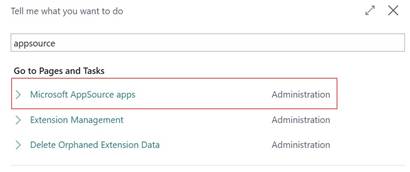
- Search for the app that you want to purchase. For example, “Freight Container Receiving Management”
- Click on Install App
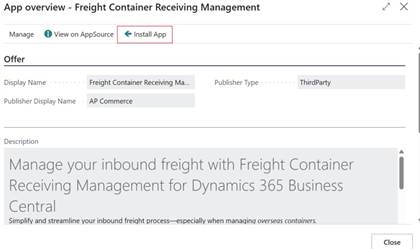
NOTE: Only proceed to step 4 and beyond if you wish to purchase and use the product in your PRODUCTION environment! Otherwise, you’re free to test out the app in any SANDBOX environment.
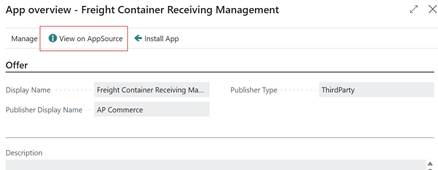
- After the app is installed, repeat steps #1 and #2. This time, click on View on Appsource
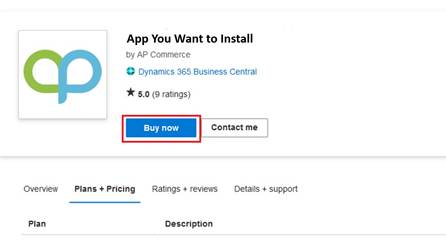
- Click on Buy Now
- Go through the Billing information pages and enter your payment information
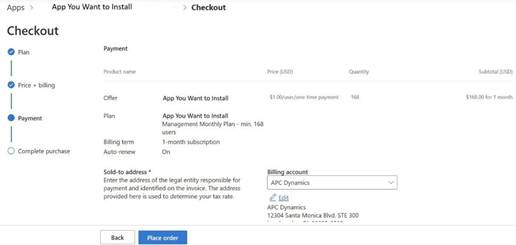
- Click on the Accept agreement & place order.
- Click on Assign license to open the Microsoft 365 admin center.

- Click on the app that is just purchased.
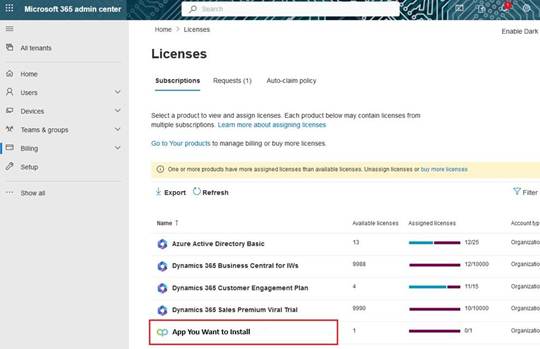
- Click on Assign Licenses to assign the licenses to the users that will be using the app.
Cancelling the Subscription
- To Cancel Subscription, open the Microsoft 365 admin center and go to Billing>>Your Products.
- Click on the app you want to cancel the subscription for and click on Cancel Subscription.
Assign User Permission Set
- Choose the
[圖片缺漏:blob:https://www.apcdynamics.com/aeeab0a2-be96-4d72-98bd-0f701e1d3136]
icon to enter “User” and click on the related link to open the Users list. - On the Users list, select users that will require permission to the app from APC Dynamics.
- On each of the selected User Cards, go to the User Permission Sets tab, add the permissions. You can find the app specific permissions in their respective User Manual.