Overview and Setup
The QuickAttach app extends Microsoft Dynamics 365 Business Central by providing a modern, high-performance file management interface. It eliminates the multi-step upload process of standard Business Central, allowing you to manage documents with simple drag-and-drop actions and seamless SharePoint integration.
Here’s what makes it different:
- True Drag & Drop Interface – Instantly attach files by dragging them from your desktop directly onto any record FactBox.
- Enterprise SharePoint Integration – Automatically offload files to SharePoint to keep your Business Central database lean and your documents organized in a structured folder hierarchy.
- Automated Document Flow – Ensure continuity by having attachments automatically carry over from unposted orders to posted invoices during the posting process.
Installation & Setup
This app is licensed through Microsoft. To purchase and deploy it in your production environment, follow the instructions in the link below:
How to purchase and license the app through Microsoft AppSource
SharePoint Connector
QuickAttach requires the SharePoint Connector to be set up in order to connect Business Central to SharePoint, follow the instructions in the link below:
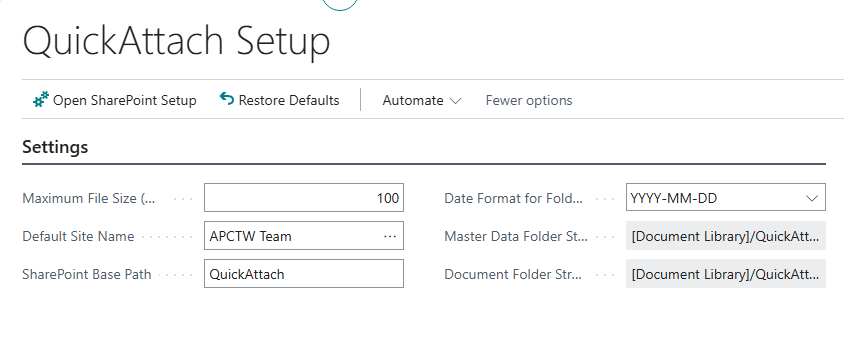
QuickAttach Setup Page
Note: Please ensure Sharepoint Connector App is setup.
- Search for QuickAttach Setup and select the related link.
- On the Settings tab, you can change the settings.
Assign User Permission Set
Note: Users will need to be assigned Sharepoint Permission Sets.
- Search “Users” and select the related link.
- Select the User Card for the relevant staff members.
- Under User Permission Sets, add the following based on the user's role:
- APEQUICKATTADMIN: Full access to setup and management.
- APEQUICKATTUSER: Allows users to drag, drop, and view attachments on records.