User Guide
Requestor
This section is for employees who need to request goods or services.
- Open Purchase Request list.
- Click New to create a new purchase request.

- Enter necessary fields in the General group.
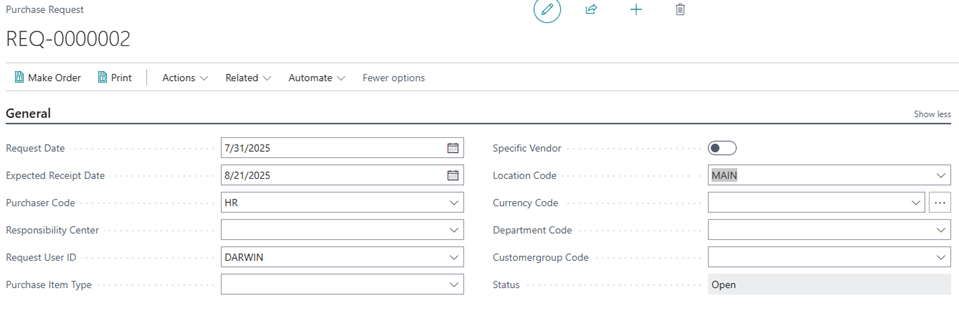
- Enter details of the purchase request in the lines section.

Purchaser
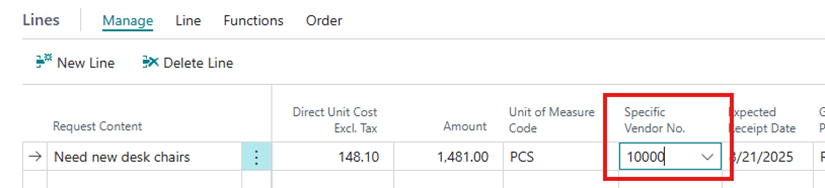
- Fill purchasing information based on request, add the Type, No., and update the Direct Unit Cost.

- Enter a Vendor in the Specific Vendor No.
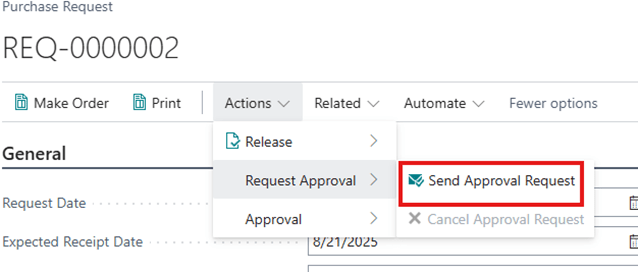
- If using Approvals, click on Actions>>Request Approval>>Send Approval Request. This will trigger the Purchase Request Approval workflow and change the Status to Pending Approval. Once approved, the status will change to Released
Note: If not using Approvals, click on Actions>>Release>>Release
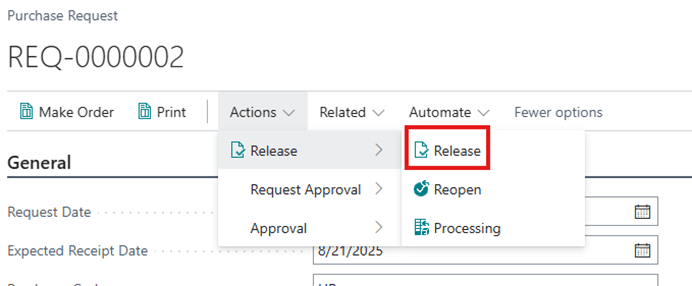
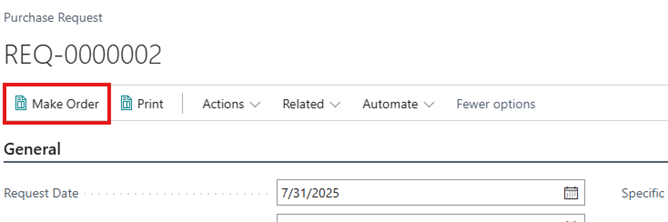
- Once the order is Released, the request is ready to be converted to a Purchase Order. The purchaser will click on the Make Order action and follow the prompts to create the order.
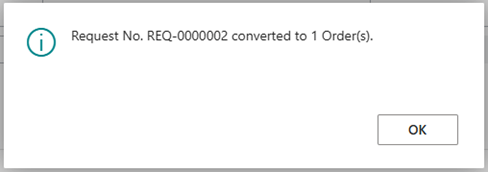
- A notification will pop up to signify that the request has been converted.
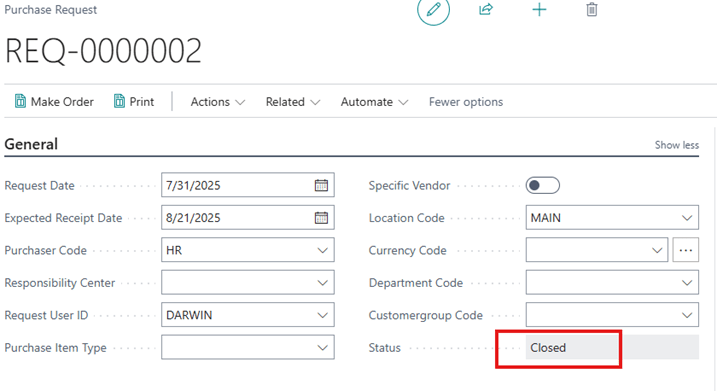
- Once the request has been fully converted, the Status will change to Closed
Document access Control
You can enable **Visibility Control** in Purchase Request Setup to restrict document access to authorized users.
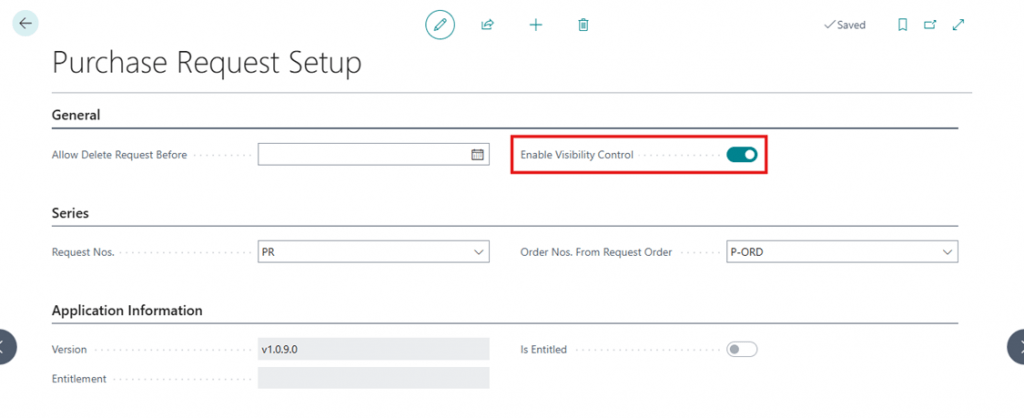
When enabled:
- Users can only view requests they created, are the requestor of, are assigned as the purchaser for, or are part of the approval chain.
- Designate **Purchase Request Admins** in User Setup for users who need full access (e.g., managers, accountants, auditors)